Éclair 1.7: Visual mode and pages created by AI
 By Thierry Gustin
Published
5 min read
By Thierry Gustin
Published
5 min read

Contents
Éclair 1.7 has been available since October 31, 2026. Two new features change the way you build your site: Visual mode, which lets you edit your page as it actually looks, and Create with AI, which composes a complete page from a few lines. Your public site, meanwhile, doesn’t change by a single byte.
What’s new in Éclair 1.7?
| New feature | What it gives you |
|---|---|
| Visual mode | You edit the page with your theme, right there: text, images and blocks |
| Create with AI | A complete page draft from your description, in 20 to 60 seconds |
| MCP connector | Claude or ChatGPT composes an entire page in sections, as a draft |
| Under the hood | 440 KB archive, 502 automated checks, public rendering unchanged |
How does Visual mode work?
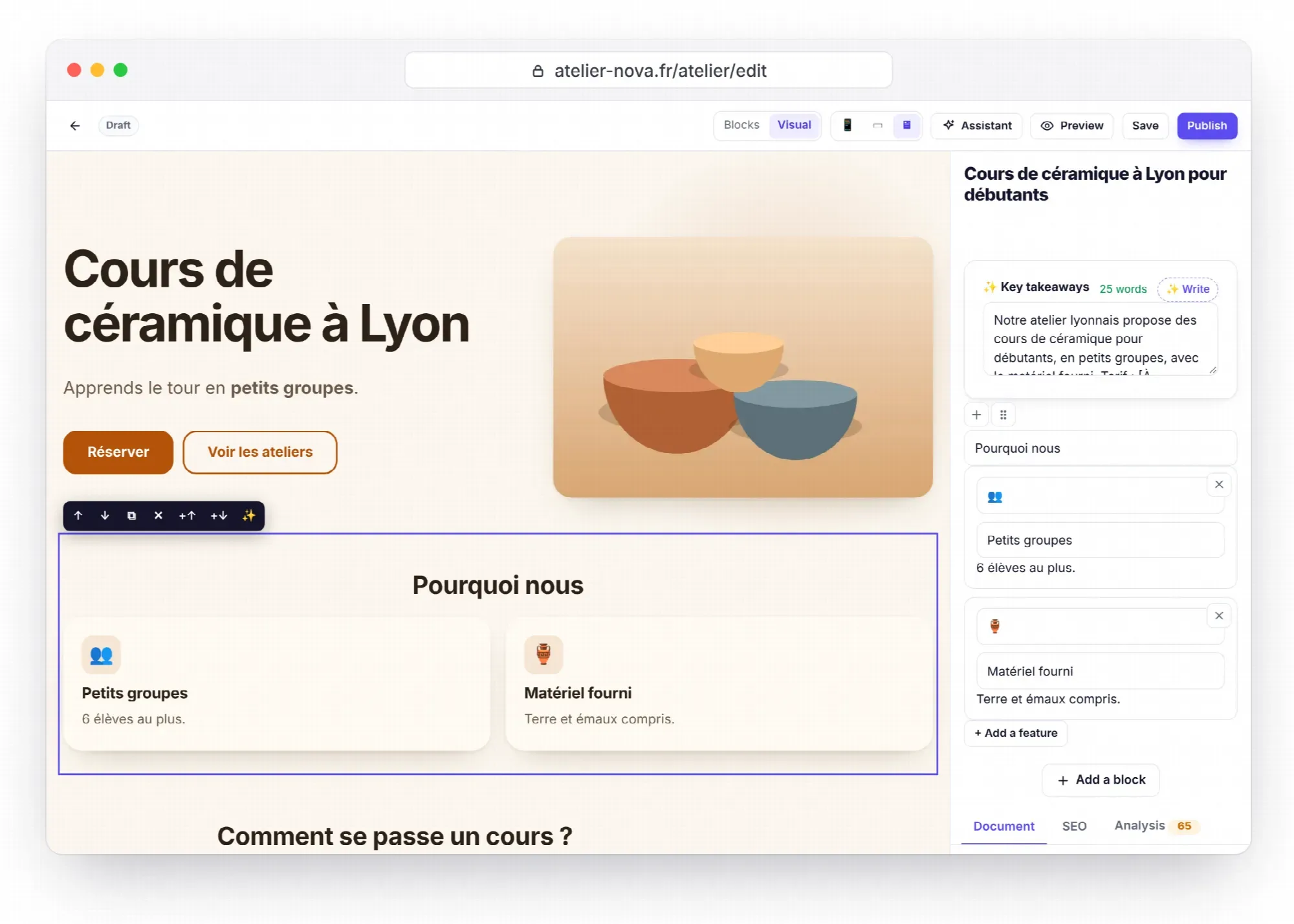
At the top of the editor, switch from Blocks to Visual: your page appears with your site’s real theme, exactly as your visitors will see it. Your choice is remembered for next time.
- Write: click a heading, a paragraph, a FAQ question or a button’s text, and type.
Ctrl+B,Ctrl+IandCtrl+Kmake text bold or italic, or create a link. - Arrange: clicking a block shows its toolbar, to move it up or down, duplicate it, delete it, or add a block above or below.
- Change an image: click it to choose another one from the media library, featured image included.
- Adjust a block: the right-hand panel shows its form (a button’s link, number of posts…), followed by the Document, SEO and Analysis tabs.
- Edit with AI: ✨ improves, fixes, shortens, expands, simplifies or translates the block’s text.
- Check and undo: view the page at mobile (390 px), tablet (768 px) or desktop width, and go back with
Ctrl+Z, up to 50 steps.
Everything goes through the usual editor: saving, local backup draft, version history and live SEO and GEO analysis.
How do you create a page with AI?
In a new piece of content (page, post or product), open the ✨ Create with AI box:
- Choose the type and the language, then describe your page in one or two sentences. If you like, add the goal (“get quote requests”), the audience, the tone and the sections you want (“banner, benefits, pricing, FAQ, contact”).
- The estimated cost is shown before you start, then taken from the assistant’s budget. If you’ve saved both keys, you choose Claude or ChatGPT.
- After 20 to 60 seconds, the draft opens in Visual mode, ready to review.
The draft contains the title, the URL, the SEO title, the meta description, “Key takeaways”, the focus keyphrase and a layout in sections: banner, features, subheadings, lists, callouts, FAQ, buttons, team, contact form, latest posts or products. The AI relies on your editorial profile, the list of your published pages (so that links point to pages that exist) and your 30 latest images.
How much does a page created by AI cost?
| Model | Price per million tokens (input / output) | Complete page |
|---|---|---|
| Claude Sonnet 5.5 | $2 / $10 | ≈ $0.08 |
| Claude Opus 5.5 | $4 / $20 | ≈ $0.16 |
Costs estimated by Éclair’s guide, based on Anthropic’s prices as of October 31, 2026. With the MCP connector, your Claude or ChatGPT subscription composes the page: nothing more to pay.
What about Claude or ChatGPT?
The MCP connector keeps pace: its create_draft tool now accepts layout sections. Ask Claude or ChatGPT “Create a Pricing page with three packages, a FAQ and a contact form”: the page arrives in Éclair as a draft, with the same structure as if the built-in assistant had composed it. Setup is explained in the MCP connector guide.
Does your public site change?
No, and that’s by design. Visual mode only exists in the admin preview: it requires a login, a security token and write permission, and this preview is never cached or indexed. Éclair’s tests compare 43 reference pages: 1.7 renders them exactly as 1.6 did, down to the byte, and Lighthouse stays at 100 in all four categories.
The rest has even slimmed down: the admin’s JavaScript and CSS are lighter, and the archive weighs 440 KB, still under 1 MB once unzipped.
How do you update to Éclair 1.7?
The procedure hasn’t changed, and it doesn’t touch your content:
- In Security › Backup, click Download a backup.
- Via FTP, delete the
app/andassets/folders, then upload the ones from the new version along withindex.phpand.htaccess. - Don’t touch
data/(content, settings, accounts, custom CSS) ormedia/(images). - In the admin, click Settings › Advanced › Clear cache.
Then open a page in the editor and click Visual: that’s all. The Updating, backing up, moving guide details each step, and the 440 KB archive is waiting for you on the Download page.
What comes next?
As with previous versions, your feedback will shape what comes next. An idea, a bug, a question? Write to me through the contact page or open an issue on GitHub.
Frequently asked questions about Éclair 1.7
Does Visual mode slow down my site?
No. It only exists in the admin: your public pages stay identical down to the byte, still served from the static cache and scored 100 on Lighthouse.
Do I need the AI assistant to use Visual mode?
No. Visual mode works without AI. Only the ✨ touch-ups and “Create with AI” require the assistant, with your Claude or ChatGPT key.
How much does a page created by AI cost?
About $0.08 with Claude Sonnet 5.5 and $0.16 with Claude Opus 5.5, according to Éclair’s guide. The estimated cost is shown before each request and taken from the assistant’s budget.
Can the AI publish the page it created?
No. The page is always created as a draft: you review it, fill in the “To complete” markers, then publish.
Can I go straight from 1.5 to 1.7?
Yes: the procedure is the same whatever version you have, and 1.7 includes the new features of the previous versions. Just make a backup first.
Read next

Éclair 1.5: themes, lightweight shop and MCP connector
Éclair 1.5 brings 6 themes with a live preview, a lightweight shop paid through Stripe and an MCP connector for Claude and ChatGPT. What’s new, how to update.
Migrate from WordPress to Éclair: the step-by-step method
Migrate from WordPress to Éclair without losing your rankings: URL inventory, recreating pages, 301 redirects and the switchover, step by step.
GEO: how to get your site cited by ChatGPT, Perplexity and Gemini
GEO helps your site get cited by ChatGPT, Perplexity and Gemini: clear writing, structured data, llms.txt and AI bot rules. The complete method.