Éclair 1.8: 12 art directions for a site like no other
 By Thierry Gustin
Published
6 min read
By Thierry Gustin
Published
6 min read
Contents
Éclair 1.8 has been available since November 1, 2026. Until now, a theme changed colors; an art direction changes your site’s entire visual world. You pick one of 12, adjust it, or ask the AI to imagine yours. And a new Design score helps you keep your pages sharp.
What’s new in Éclair 1.8?
| New feature | What it gives you |
|---|---|
| 12 art directions | A complete visual world: palette, heading typeface, banner, features and icons |
| Adjust the direction | 5 colors, 18 heading typefaces, case, corners, spacing, cards and banner |
| Imagine my direction with AI | Three genuinely different directions, drawn from your business, for about $0.03 |
| Design score | A third score in the editor, next to SEO and GEO |
| Under the hood | Guaranteed contrast, typeface served by your site, 479 KB archive, 550 checks |
What is an art direction?
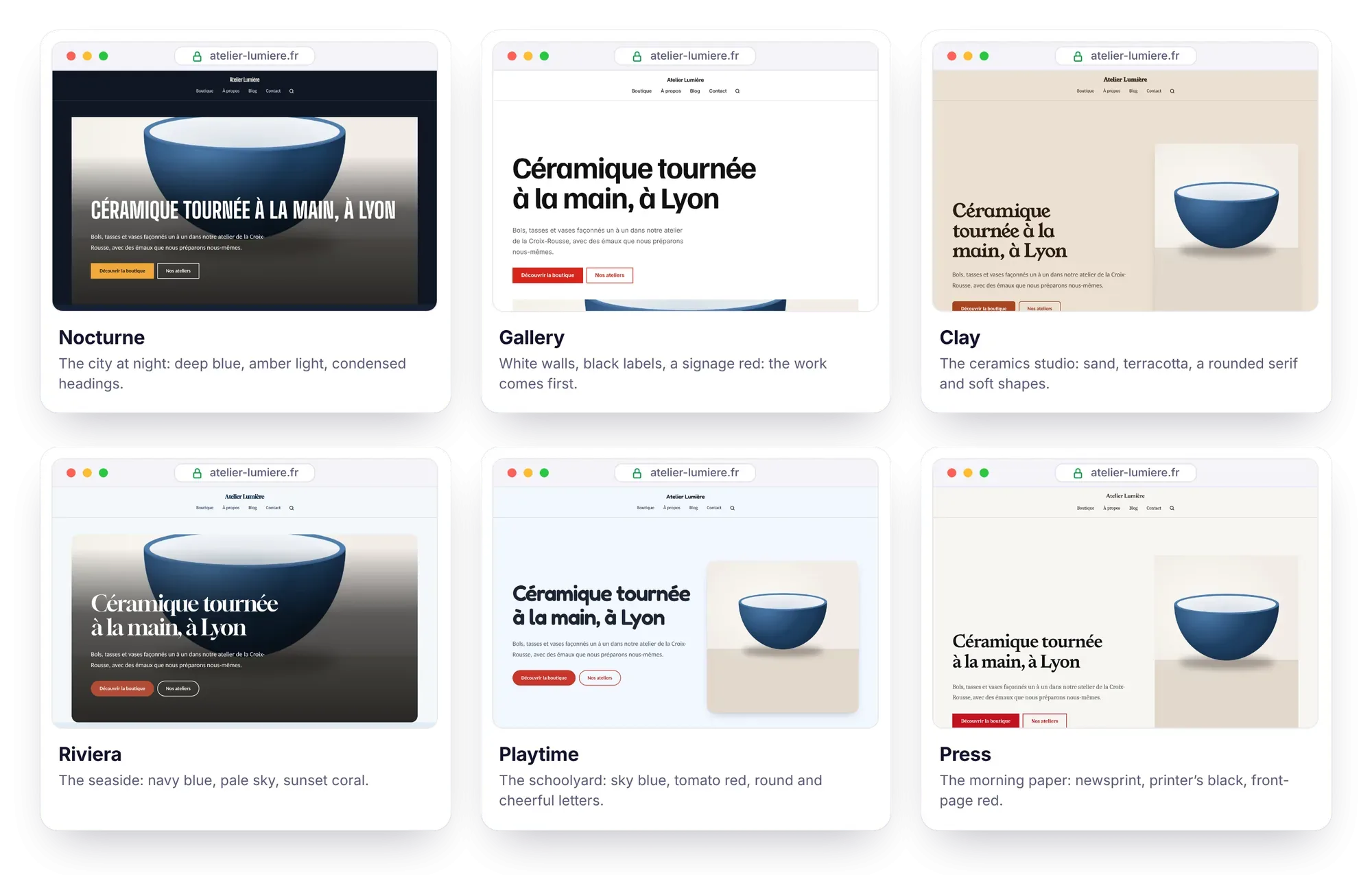
A theme changes colors; an art direction changes the entire visual world: palette, heading typeface, heading size, corners, spacing, banner composition, features layout, color bands and icons. Each one starts from a concrete idea, not an adjective:
| Direction | Visual world | Heading typeface |
|---|---|---|
| Nocturne | The city at night: deep blue, amber light | Big Shoulders Display, all caps |
| Gallery | White walls, black labels, a signage red | Familjen Grotesk |
| Clay | The ceramics studio: sand, terracotta, soft shapes | Young Serif |
| Botanical | The herbarium and the greenhouse: deep green, sage paper | DM Serif Display |
| Poster | The Swiss poster: black on off-white, bright orange | Archivo Black, all caps |
| Riviera | The seaside: navy blue, pale sky, coral | Gloock |
| Chambers | The letterhead: navy ink, burgundy, fine rules | Libre Caslon Display |
| Neon | The creative screen at night: near-black, lime green | Unbounded |
| Gentle | The treatment room: powder pink, plum, plenty of air | Cormorant Garamond |
| Worksite | Concrete, safety yellow, condensed signage | Barlow Condensed, all caps |
| Playtime | The schoolyard: sky blue, tomato red, round letters | Fredoka |
| Press | The morning paper: newsprint, front-page red | Newsreader |
How do you choose and adjust your direction?
- In Settings › Appearance, choose Art direction instead of Classic theme.
- Click one of the 12 cards and watch the live preview: your real site, on desktop or mobile.
- Open Adjust the direction to make it your own, then save: nothing is published until you do.
The Adjust panel covers everything, to mix and match freely:
- 5 colors: background, bands and cards, text, secondary text, accent for buttons and links.
- Heading font: 18 typefaces chosen for their personality, or a system font. The body text stays in a system font, with nothing to download.
- Case, heading size, corners (square, softened, round) and spacing (compact, normal, airy).
- Cards with a thin border, a flat color or a drop shadow, and a home banner side by side, poster, full-bleed, editorial or centered.
- Features as cards, rows or columns, sections plain or in color bands, and line icons in place of emoji.
You can go back to the classic theme whenever you like: its settings are waiting for you, untouched.
How does the AI imagine your direction?
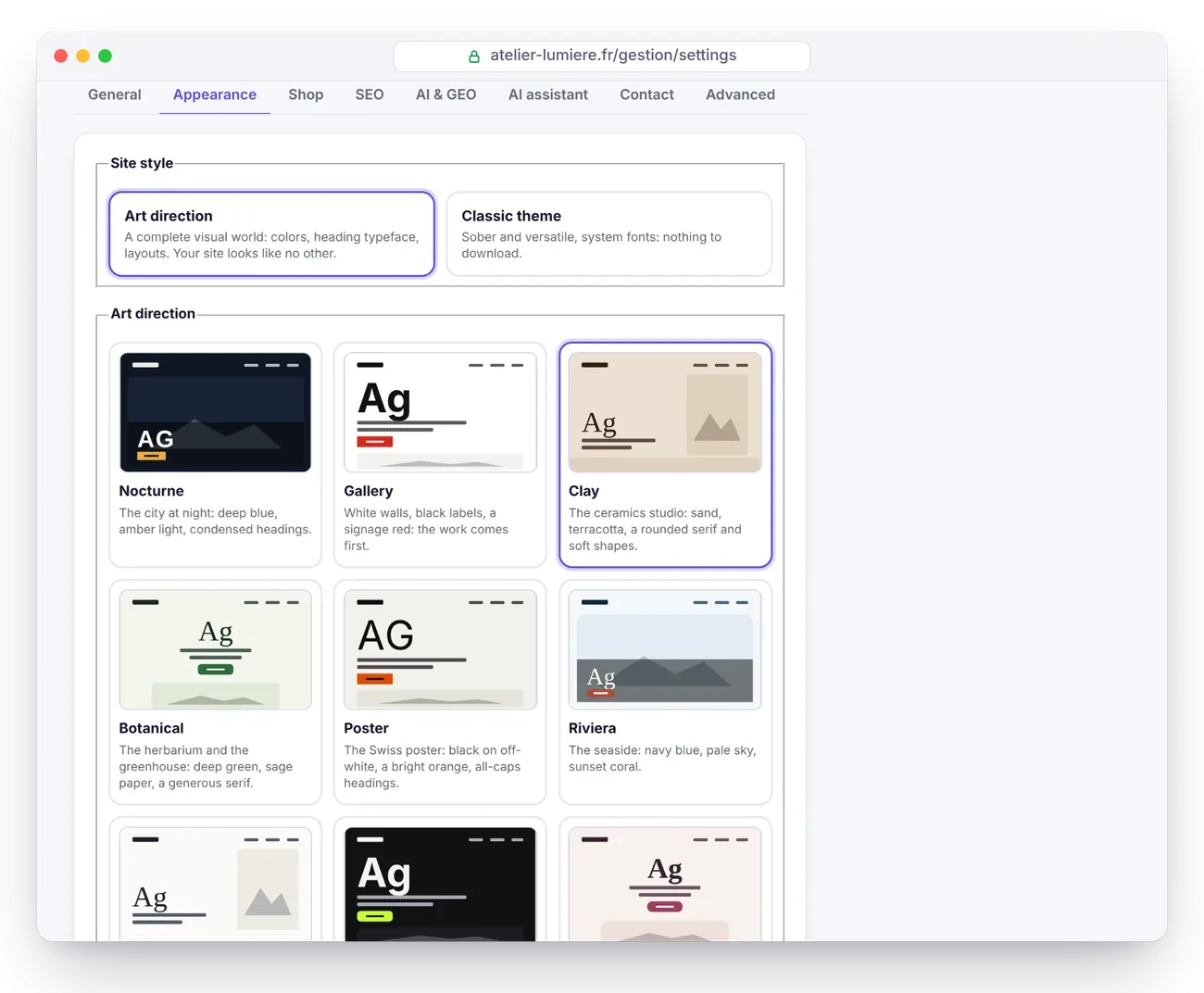
When the AI assistant is turned on, Imagine my direction with AI appears below the cards. Describe your business, your audience and the mood you’re after in one or two sentences, for example “organic neighborhood bakery in Lyon, family customers, warm but modern”, then click Suggest 3 directions.
The AI also reads your site’s description and your editorial profile. It starts from the concrete world of your business (places, materials, objects, light), gives each suggestion a precise reference and suggests three genuinely different directions, steering clear of your category’s default choice and the tics of AI-generated design. This method is adapted from Impeccable, by Paul Bakaus.
The three suggestions appear first among the cards, marked ✦: you try them in the preview, adjust, then save the one you like. The AI only picks from Éclair’s settings and never writes CSS: each suggestion is checked and its contrast corrected. The estimated cost is about $0.03 for all three suggestions with Claude Sonnet 5.5, taken from the assistant’s budget.
What is the Design score?
In the editor, the Analysis tab now shows a third ring, Design, next to SEO and GEO. It checks that your page holds up visually:
- subheadings in a clear hierarchy, short and with no decorative emoji;
- a banner with a short title and a call-to-action button;
- measured calls to action, three buttons at most;
- a Features block with 3 to 6 described items;
- text with no sentences in all caps, no empty superlatives, no repeated passage and no stretch of more than 350 words without a break.
The Analysis tab’s score is the average of the three rings: a good page gets found, gets cited and is pleasant to read.
Does your site stay fast and readable?
Yes, and that’s guaranteed by design:
- Guaranteed WCAG contrast: whatever the colors, chosen by you or by the AI, Éclair adjusts the text to 7:1 against the background, and the secondary text, links and buttons to 4.5:1. This is checked on 20,000 randomly generated palettes.
- No third-party service: the heading typeface (12 to 27 KB) is downloaded only once by your server, then served by your site and preloaded. Your visitors don’t contact Google Fonts or anyone else.
- Always 100/100: Lighthouse gives 100 in all four categories, including with the Nocturne, Riviera, Press and Poster directions.
- Nothing breaks: the HTML doesn’t change, so neither do SEO, structured data or accessibility. The 6 classic themes stay identical down to the byte.
How do you update to Éclair 1.8?
The procedure hasn’t changed, and it doesn’t touch your content:
- In Security › Backup, click Download a backup.
- Via FTP, delete the
app/andassets/folders, then upload the ones from the new version along withindex.phpand.htaccess. - Don’t touch
data/(content, settings, accounts, custom CSS) ormedia/(images). - In the admin, click Settings › Advanced › Clear cache.
There’s just one thing to check: Éclair 1.8 requires the PHP zlib extension, enabled by default almost everywhere. And if your host blocks outgoing connections, a direction’s typeface can’t be downloaded: Éclair lets you know and uses a fallback font from the same family. The Updating, backing up, moving guide details each step, and the 479 KB archive is waiting for you on the Download page.
What comes next?
As with previous versions, your feedback will shape what comes next. An idea, a bug, a question? Write to me through the contact page or open an issue on GitHub.
Frequently asked questions about Éclair 1.8
Do art directions slow down my site?
No. Only the rules your direction needs are inlined in the page, and the heading typeface is served by your site and preloaded. Lighthouse stays at 100 in all four categories.
Does my current theme go away?
No. The 6 classic themes are still there, identical down to the byte. You can switch from a direction to the classic theme whenever you like, and each one keeps its settings.
Do I need the AI assistant to use the directions?
No. The 12 directions and the Adjust panel work without AI. Only “Imagine my direction with AI” requires the assistant, with your Claude or ChatGPT key.
Do my visitors connect to Google Fonts?
No. Your server downloads the typeface only once from Fontsource (SIL Open Font License), then serves it itself: no requests to a third-party service.
Can I go straight from 1.6 to 1.8?
Yes: the procedure is the same whatever version you have, and 1.8 includes the new features of the previous versions. Just make a backup first.
Read the themes and directions guide
Read next
Éclair 1.7: Visual mode and pages created by AI
Éclair 1.7 adds Visual mode, to edit your page as it actually looks, and complete pages created by AI. What’s new, what it costs and how to update.
Éclair 1.5: themes, lightweight shop and MCP connector
Éclair 1.5 brings 6 themes with a live preview, a lightweight shop paid through Stripe and an MCP connector for Claude and ChatGPT. What’s new, how to update.
Migrate from WordPress to Éclair: the step-by-step method
Migrate from WordPress to Éclair without losing your rankings: URL inventory, recreating pages, 301 redirects and the switchover, step by step.