Themes and appearance
The 6 Éclair themes change your site’s look in one click, with a live preview, without touching the HTML or your SEO. Here’s how to use them.
Contents
- What are the 6 Éclair themes?
- How do you change your theme?
- What does each theme set when you choose it?
- What other appearance settings can you change?
- Why doesn’t a theme slow down your site?
- How do you add your own CSS?
- What don’t themes do?
- What should you do if the appearance doesn’t change?
- Questions about themes
The 6 Éclair themes change your site’s look in one click: color, fonts, header and list layout. You try them on your real site with the live preview, on desktop or mobile, and nothing is published until you save. Your content, your speed and your SEO stay exactly as they are.
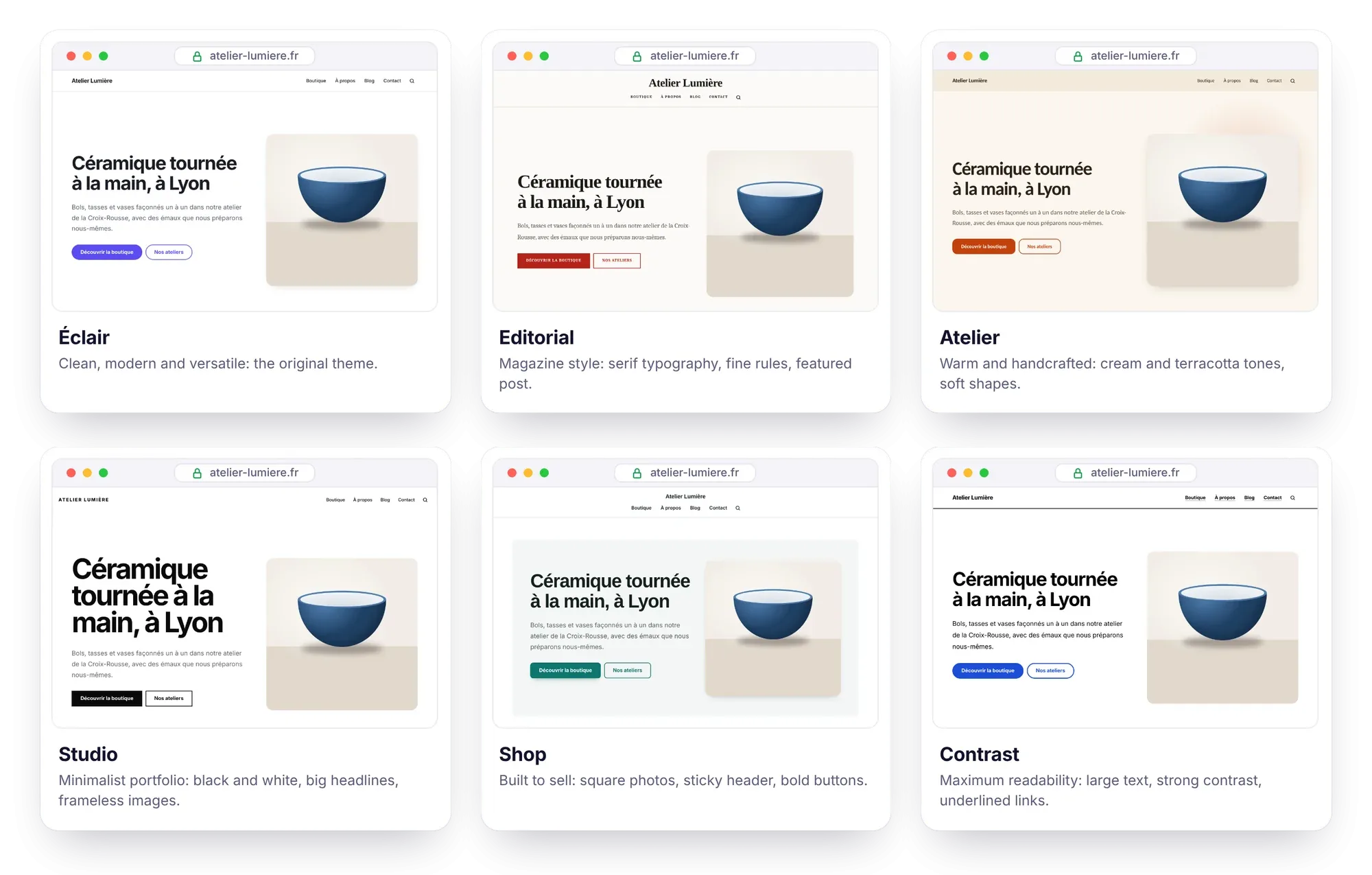
What are the 6 Éclair themes?
Éclair themes have shipped with the CMS since version 1.3.0. Each one has its own personality and its own audience:
| Theme | Look and feel | Best for |
|---|---|---|
| Éclair | Clean, modern and versatile: the original theme | Any kind of site |
| Editorial | Magazine style: serif typography, fine rules, drop cap, featured post | Blogs, media outlets, authors |
| Atelier | Warm and handcrafted: cream and terracotta tones, soft shapes | Craftspeople, restaurants, wellness |
| Studio | Minimalist portfolio: black and white, big headlines, frameless images | Photographers, designers, agencies |
| Shop | Built to sell: square photos, sticky header, bold buttons | Shops, makers |
| Contrast | Maximum readability: large text, strong contrast, underlined links | Public services, nonprofits, seniors |
Every theme displays the same blocks, the blog and the lightweight shop: pick the one that looks like your line of work, not the one that “includes” a feature.
How do you change your theme?
Five steps are all it takes, preview included:
- Open Settings › Appearance.
- Under Theme, click the card you like. Its color, fonts, header and list layout are applied to the form right away.
- Under Live preview, choose the page to display (Home, Blog, A post, The shop or A product), then switch from Desktop to Mobile. You can click around in the preview: links stay inside it.
- Adjust whatever you like (main color, fonts, header, lists, dark mode): the preview follows every change.
- Click Save. The page cache is cleared automatically: your site changes right away.

What does each theme set when you choose it?
Here are the recommended settings each theme applies, all of which you can change afterward:
| Theme | Main color | Fonts (headings / body) | Header | Lists |
|---|---|---|---|---|
| Éclair | Violet #5b4cf0 | System (modern) | Logo on the left | Card grid |
| Editorial | Red #b42318 | Elegant serif / Modern serif | Centered | Card grid |
| Atelier | Terracotta #c2410c | Humanist | Logo on the left | Card grid |
| Studio | Black #111111 | Neo-grotesque | Logo on the left | Card grid |
| Shop | Teal #0f766e | Geometric / System (modern) | Centered | Card grid |
| Contrast | Blue #1d4ed8 | System (modern) | Logo on the left | List: image on the left |
What other appearance settings can you change?
Still in Settings › Appearance, below the preview:
| Setting | What you choose |
|---|---|
| Header | “Logo on the left, menu on the right” or “Centered: logo above the menu” |
| Post and product lists | “Card grid” or “List: image on the left” |
| Logo | A PNG or WebP on a transparent background, about 400 px wide |
| Site icon (favicon) | A square image of at least 512 px; without an icon, a lightning bolt in your color is generated |
| Main color | Any color: text contrast is adjusted automatically |
| Heading font and Body font | System fonts: zero downloads, instant display |
| Dark mode | “Automatic (based on the visitor’s device)” or “Always light” |
| Footer text | Your own text, and the Show “Powered by ⚡ Éclair” option |
| Custom CSS | Your own style rules, 64 KB max |
For the main color, Éclair aims for a contrast ratio of at least 4.5:1 between links and the background, the threshold set by WCAG success criterion 1.4.3 for body text. If your color falls short, links use a darker version of it (a lighter one in dark mode), and button text switches to white or black, whichever reads better.
Why doesn’t a theme slow down your site?
Because each theme is just a 1.5 to 3 KB stylesheet, added to the base one. The Éclair theme adds nothing at all: it is the base style.
- The HTML doesn’t change from one theme to another: speed, accessibility, structured data and SEO stay exactly the same.
- Only the active theme is inlined in the page, along with the rest of the CSS: there’s no extra file to download.
- Automatic dark mode works with each of the 6 themes.
- The shop’s styles are only included when it’s open: a brochure site never loads them.
How do you add your own CSS?
To go further than the theme (a button color, spacing, the style of a block), paste your rules into Settings › Appearance › Custom CSS, then save.
- They take precedence over the theme: they’re added after it on every page.
- They survive updates since Éclair 1.5.0: they’re stored with your data, in
data/, which updates never touch. - Dark mode markers work: rules placed between
/*dark*/and/*/dark*/disappear when dark mode is set to “Always light”. - For security, the
<character,@importrules and control characters are removed, and the field accepts 64 KB at most.
For example, for buttons with slightly rounded corners and a darker footer in dark mode:
.btn { border-radius: 6px; }

/*dark*/@media (prefers-color-scheme: dark) { .site-footer { background: #0d0d12; } }/*/dark*/
What don’t themes do?
- They don’t change the page structure. To move an element or add an area, you need to edit the PHP templates in
app/theme/, as explained on the For developers page. An update replaces them: keep a copy of your files. - There’s no theme catalog to download, and no plugins: the 6 themes come with Éclair. Having no plugins is a deliberate choice, for speed and security.
- No web fonts in the settings: only system fonts, already installed on the visitor’s device.
- Custom CSS imports nothing: without
@import, it can’t load another stylesheet.
What should you do if the appearance doesn’t change?
| Symptom | Solution |
|---|---|
| The site hasn’t changed | The preview doesn’t save anything: click Save. The CSS is inlined in every page, so there’s no old file to refresh. |
| “The shop” and “A product” are missing from the preview | They only appear once the shop is open, and “A product” only when a product is published. |
| A rule in your custom CSS is ignored | Check that it contains neither < nor @import, which are removed when you save. If it still has no effect, make it more specific: a more specific rule in the theme wins. |
| “Custom CSS too long: 64 KB max.” | Combine or trim your rules. |
| Some rules disappear | They’re between /*dark*/ and /*/dark*/, and dark mode is set to “Always light”: that’s intended. |
Your edits to theme.css are gone | The update replaced app/. Move your rules into the custom CSS. |
The original instructions are also in Éclair’s official guide, and the details of versions 1.3.0 to 1.5.0 are in the changelog.
Questions about themes
Will changing themes make me lose my content or my SEO?
No. Éclair themes don’t touch your content or the HTML of your pages: headings, structured data, speed and accessibility stay exactly the same. Only the appearance changes.
Can I go back to the original theme?
Yes, at any time: choose the Éclair card in Settings › Appearance, then save. Its recommended settings are applied again, and your custom CSS stays in place.
Does dark mode work with every theme?
Yes: it applies automatically based on the visitor’s device, with each of the 6 themes. To turn it off, set Dark mode to “Always light”.
Which theme should I choose to sell online?
The Shop theme is built to sell: square photos, sticky header, bold buttons. The other themes display the shop too; the instructions are in The lightweight shop.
Does my custom CSS survive updates?
Yes, since Éclair 1.5.0: it’s stored in data/, which updates never touch. Only changes made directly in app/theme/ are replaced.