The lightweight shop
Sell with Stripe, PayPal or Revolut on your Éclair site: product pages built for Google, a Buy now button linked to a payment link, with no cart.
Contents
- How does the lightweight shop work?
- What do you need to prepare before opening the shop?
- How do you open the shop?
- How do you create a product page?
- How do you sell with Stripe using payment links?
- How do you sell with PayPal or Revolut Business?
- How much does an Éclair shop cost?
- What’s built in for Google and AI?
- What doesn’t the lightweight shop do?
- What should you do if the shop or a payment gets stuck?
- Questions about the lightweight shop
Éclair’s lightweight shop is the simple way to sell with Stripe, PayPal or Revolut Business: a few dozen products, without the overhead of an e-commerce platform. Each product gets its own page, optimized for Google and AI, and its Buy now button leads to a payment link. Your payment provider collects the payment, sends the receipts and handles refunds: no payment details are stored on your server.
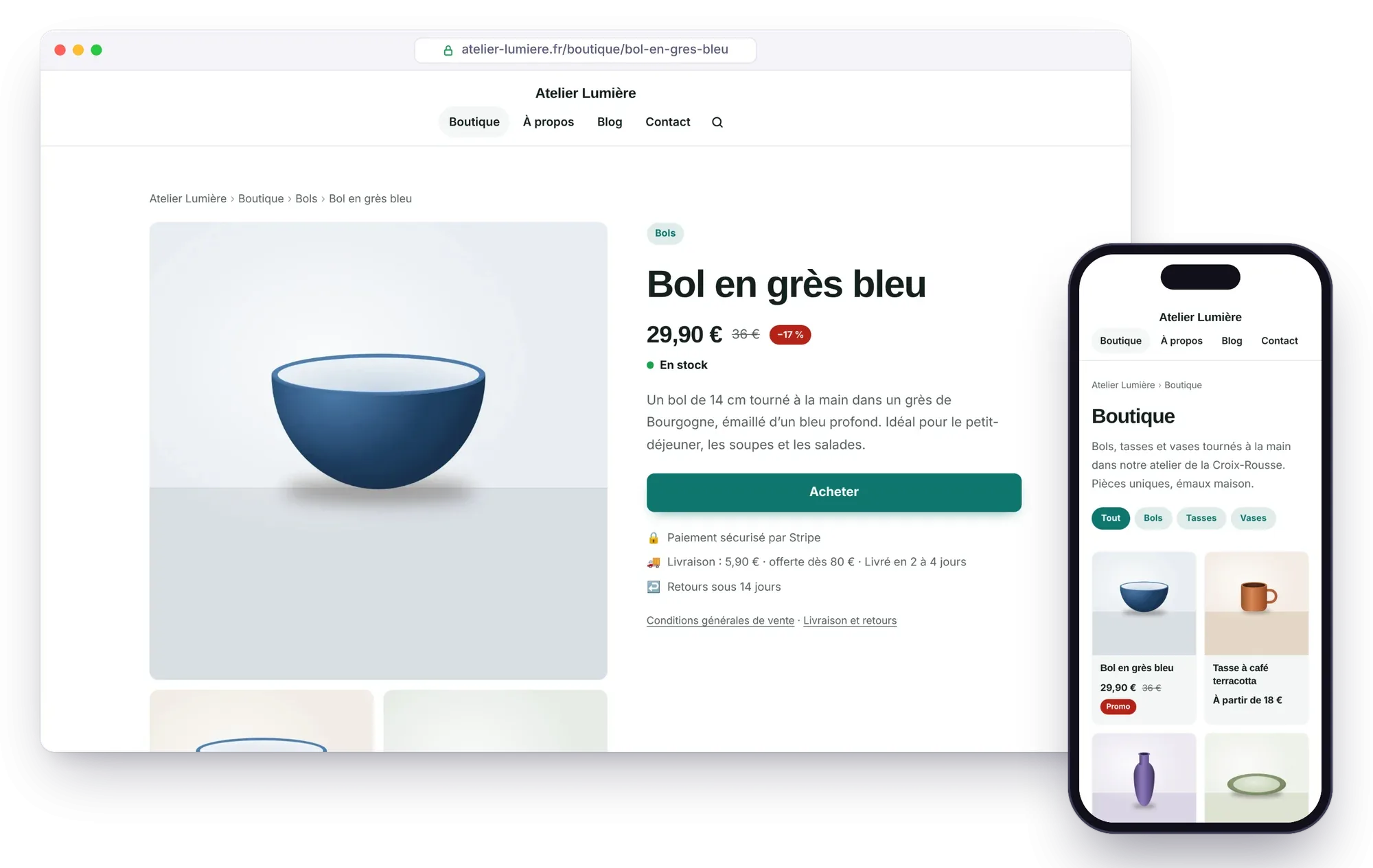
How does the lightweight shop work?
The work is split three ways:
| Who | Does what |
|---|---|
| Éclair | Publishes the product pages, the catalog, the categories and the data read by Google and AI |
| Stripe, PayPal or Revolut | Collects the payment, sends the receipt and handles refunds |
| You | Find each order with your payment provider (and by email, if you’ve turned that on), then pack and ship |
No cart, no customer accounts, no database: Éclair doesn’t store any orders. For an overview before you get started, also read our page on selling online with Éclair.
What do you need to prepare before opening the shop?
- Your legal notice and your terms of sale, published. The shop won’t open without them. The installation created an outline of a legal notice for you to complete.
- Your return policy. In the EU, distance selling gives buyers at least 14 days to withdraw, with some exceptions such as a personalized product or digital content.
- A Stripe account, a PayPal business account or a Revolut Business merchant account, to create the payment links.
- Photos: at least 3 views per product, on a neutral background.
How do you open the shop?
- Publish your legal notice and your terms of sale.
- In Settings › Shop, under Shop pages, select them in the Legal notice and Terms of sale fields. If you like, add a Shipping and returns page: its link appears below the buy button and in the return policy sent to Google.
- Choose the Currency (EUR, USD, GBP, CHF or CAD). Under Shipping, set the Shipping cost, Free shipping over (optional), the Delivery time (days) and the Shipping countries, as two-letter codes (US, GB, FR…). Under Returns, enter the Return window (days) and turn on Free returns if you offer them.
- Click Create the thank-you page: Stripe can send your customers back there after payment.
- Turn on Shop open, then click Save.
- In Menus, add “Shop” to the main menu.
The catalog is then live at /shop (/boutique, /tienda, /negozio or /loja, depending on the site’s language). The other settings in Settings › Shop:
| Setting | What it’s for |
|---|---|
| Shop URL | Changes /shop; the old URLs are then redirected |
| Products per page | The number of products on each catalog page, from 1 to 48 |
| Shop title and Shop description | Shown at the top of the catalog; the description also serves as the meta description |
| Buy button text | “Buy now” by default |
| Shipping cost | Empty: not shown; 0: free shipping; ignored for digital products |
How do you create a product page?
Once the shop is open, click Content › + Product. At the top of the editor, the product page brings together:
- Price and Compare-at price (optional): the discount is shown as a percentage.
- Availability: In stock, Sold out or Pre-order.
- Payment link: the product’s fixed-price link, created with Stripe (
https://buy.stripe.com/…), PayPal or Revolut Business. - Photos: up to 9. The first one is the main one (Google, social media); the star lets you pick another.
- Variants (size, color…): each one can have its own price, link and availability. On the site, choosing a variant works without JavaScript.
- Google Shopping details: Brand, SKU, Barcode (GTIN, EAN), Condition (New, Used, Refurbished) and the Digital product or service (no shipping) checkbox.
Below that, describe the product with the usual blocks of the editor, then file it in a product category (Categories, It contains field: “Products (shop)”). The SEO analysis also checks the price, the payment link, the number of photos and the identifiers. To feature products on a page, add the Products block.

How do you sell with Stripe using payment links?
Each product, or each variant, has its own Stripe payment link (Payment Links). To create one:
- In Stripe, open Payment Links and create a link: product, price and, if needed, shipping address collection.
- In the After the payment tab, choose to redirect the customer to your thank-you page. Its URL is shown in Settings › Shop, in the “URL to paste into Stripe” field.
- In Stripe’s settings (Customer emails), turn on receipts for successful payments.
- Copy the link and paste it into the Payment link field of the product page.
Éclair adds the product reference (client_reference_id) to the link: each payment shows what was bought. Every order reaches you in Stripe, and by email if you’ve turned that on: you pack and ship, and Stripe handles the refund if needed.
How do you sell with PayPal or Revolut Business?
Since Éclair 1.6, PayPal and Revolut Business payment links are recognized just like Stripe’s: the product page shows “Secure payment with PayPal” or “Secure payment with Revolut” below the buy button. The principle stays the same: one fixed-price link per product, or per variant sold at a different price, pasted into the Payment link field.
- PayPal: in your business account, open Payment links and buttons, create a fixed-price link for your product, then copy it (it starts with
https://www.paypal.com/). Your customer pays with their PayPal account or by card. - Revolut Business: you need a merchant account. In Merchant › Payment link, create a link with the product’s amount, then copy it (
https://checkout.revolut.com/…). Your customer pays on Revolut’s payment page.
Two differences from Stripe: after paying, the customer stays on the provider’s confirmation page, with no automatic return to your thank-you page, and the product reference isn’t added to the payment. So give each link a clear name to help you recognize your orders. Any other payment provider works too, as long as its payment link starts with https://.
How much does an Éclair shop cost?
Nothing on Éclair’s side, since it’s free: you only pay your payment provider’s fee on each payment. To sell with Stripe, there’s no subscription or setup fee, and Stripe’s payment links are included.
| Payment | Stripe fee |
|---|---|
| Standard card from the European Economic Area (EEA) | 1.5% + €0.25 |
| Premium card | 2.8% + €0.25 |
| Card issued outside the EEA | 3.15% + €0.25 |
| Currency conversion | 2% extra |
Stripe’s prices in France, as of October 30, 2026, on stripe.com/fr/pricing; they may change. For example, for a €29.90 product paid with a standard EEA card, the fee is about €0.70 (1.5% of €29.90, or €0.45, plus €0.25).
With PayPal in France, the fee is 1.2% + €0.35 for a card payment and 2.9% + €0.35 when your customer pays with their PayPal account, with an extra 1.99% if the buyer is outside the EEA (1.29% from the UK): see PayPal’s fee schedule, updated July 15, 2026. With Revolut Business, it’s 1% + €0.20 for a consumer card issued in the EEA, and higher for other cards: see Revolut’s help page. Prices as of October 31, 2026.
The prices shown are the ones you enter: display them with taxes included if you sell to consumers.
What’s built in for Google and AI?
- Product and Offer structured data on every product page (ProductGroup for variants): price, currency, stock, condition, brand, shipping cost and delivery time, and a return policy set for your whole business. This is the information Google shows in its product results.
- Product feed
/products.xmlin Google Merchant Center format: add it as a product source in Merchant Center to appear for free in the Shopping tab. - Product categories as pillar pages, a sitemap with every photo, breadcrumbs.
- For AI: each product’s price and availability in
llms.txt, and in the Markdown version of each product page (add.mdto its URL).
Only products that have a price and a payment link are included in the structured data and the feed. The rest of the SEO works just as it does for a page: see SEO and GEO: getting cited by AI.
What doesn’t the lightweight shop do?
The idea is to keep things simple. The lightweight shop has no:
- multi-product cart: each Buy now button pays for one product, or one variant;
- discount codes;
- customer accounts;
- automatic inventory management: you change the availability by hand on the product page;
- order tracking in Éclair: orders stay with your payment provider.
A product page accepts 20 variants at most. If you sell hundreds of products, or if you need these features, a full e-commerce platform such as Shopify, WooCommerce or PrestaShop will be a better fit.
What should you do if the shop or a payment gets stuck?
| Message or symptom | Solution |
|---|---|
| “The shop stays closed: publish these pages first…” | Publish your legal notice and your terms of sale, then select them in Settings › Shop. |
| “This URL is already in use: pick another one.” | A page already uses the shop’s URL: change the Shop URL or the page’s URL. |
| The + Product button doesn’t appear | It shows up in Content once the shop is open. |
| “The shop is closed: this product will stay hidden until it opens.” | Turn on Shop open in Settings › Shop. |
| The buy button shows “Coming soon” | The product, or the variant, is missing its price or its payment link. |
| The buy button shows “Sold out” | The availability of the product, or of the variant, is set to Sold out. |
| The payment link isn’t saved | It must start with https://. |
| The customer doesn’t come back to your site | With Stripe, enter your thank-you page’s URL in the link’s After the payment tab. With PayPal or Revolut, the customer stays on the provider’s confirmation page: that’s normal. |
| The product is missing from Google Shopping | Check its price and payment link, then the /products.xml source in Merchant Center. |
The original instructions are also in Éclair’s official guide. For the look of your catalog, the Shop theme is built to sell: see Themes and appearance.
Questions about the lightweight shop
Do I need a subscription to sell with Stripe on Éclair?
No. Éclair is free, and Stripe charges no subscription or setup fee: you only pay a fee on each payment, for example 1.5% + €0.25 with a standard EEA card (prices as of October 30, 2026).
Can my customers buy several products at once?
No: the lightweight shop has no multi-product cart. Each Buy now button leads to the payment link for one product, or for one of its variants.
Can I use a payment provider other than Stripe?
Yes. Since Éclair 1.6, PayPal and Revolut Business links are recognized, and the product page shows “Secure payment with PayPal” or “with Revolut”. Any other provider works too, as long as its payment link starts with https://. The product reference (client_reference_id) is only added automatically to Stripe links.
How many products can the lightweight shop handle?
It’s designed for a few dozen products. For hundreds of products, a cart, discount codes or customer accounts, a full e-commerce platform such as Shopify, WooCommerce or PrestaShop will be a better fit.
Do my customers’ payment details go through my site?
No. The customer pays on Stripe, PayPal or Revolut, which collects the payment and sends the receipt: no payment details are stored on your server.