Create a website from A to Z with the Éclair CMS AI Agent
 By Thierry Gustin
Published
Updated
4 min read
Contents
- Which friction points does the agent remove?
- Step 1: download and open the agent
- Step 2: describe your business, no jargon
- Step 3: approve the proposal in one click
- Step 4: address, images and legal pages
- Step 5: the build, checked page by page
- Step 6: collect your site and put it online
- The result: a ready site, and an admin of your own
- How do you get the best result?
- Download the Éclair CMS AI Agent
- Frequently asked questions about creating a site with the agent
Creating a professional website is rarely hard for one single reason: it is a series of small difficulties. What to write, which pages, which design, which images, which legal pages, how to be found on Google, how to put it online. The Éclair CMS AI Agent was designed to remove those frictions one by one.
In this guide, we follow the real creation of the example site shipped with the agent, a fictional bakery in Lyon, from the first question to the file ready to upload.
Which friction points does the agent remove?
| Friction | Without the agent | With the Éclair CMS AI Agent |
|---|---|---|
| The blank page | You write everything alone | One open question, a business sheet, and the agent writes every page |
| Technical choices | Site type, pages, menu, URLs | The agent infers and proposes, you approve in one click |
| Design | Choosing colours, fonts, layouts | 3 art directions suited to your business |
| Images | Finding or creating visuals | Your photos, or AI-generated images |
| Legal pages | Researching your country’s obligations | A form adapted to your country and status |
| SEO and GEO | Settings, titles, structured data | Checked on every page, copy improved |
| Going live | Installing, configuring, securing | A ready ZIP and a 5-step guide |
Step 1: download and open the agent
Download the Éclair CMS AI Agent, unzip it, then open the folder in Claude Code or Codex. Paste the starter prompt from the PROMPT-DEMARRAGE.txt file. The agent quietly checks that PHP is present and offers to install it if missing.
Step 2: describe your business, no jargon
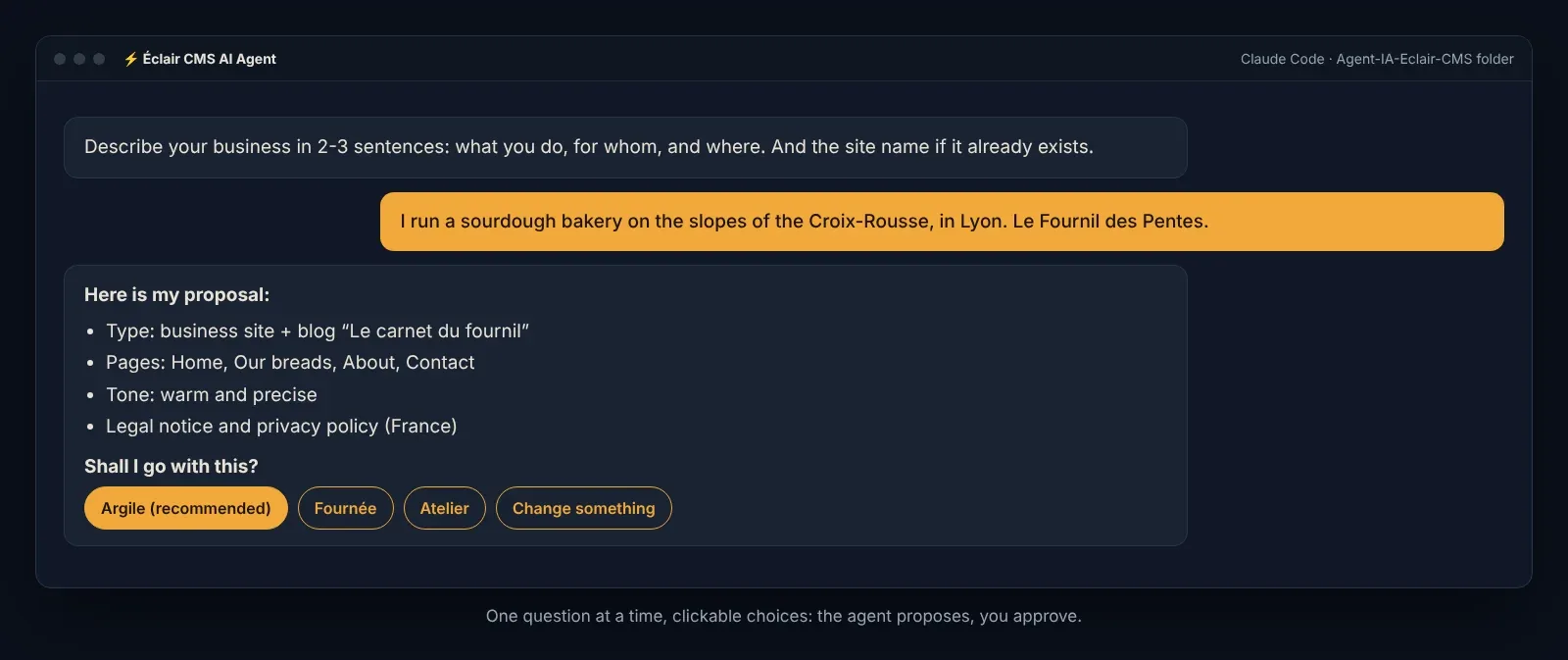
The first question is open: “Describe your business in 2-3 sentences: what you do, for whom, and where.” For the bakery: “I run a sourdough bakery on the slopes of the Croix-Rousse, in Lyon.”
Then comes the business sheet, in a single message: services, area, hours, prices or quotes, lead times, what sets you apart, real proof and social networks. What you don’t give won’t appear on the site: a shorter page is better than a made-up fact.
Step 3: approve the proposal in one click
In one message, the agent presents the site type, pages, menu, tone and three art directions, with its recommendation first. You choose with one click, or change a word.
Step 4: address, images and legal pages
The agent sets your site address (already bought, to buy, or later) and checks that your hosting is suitable. For images, you choose: your photos, AI-generated images (fal.ai, OpenAI or FLUX), or none for now. Then it sends you a legal form adapted to your country and status, to fill in one message.
Step 5: the build, checked page by page
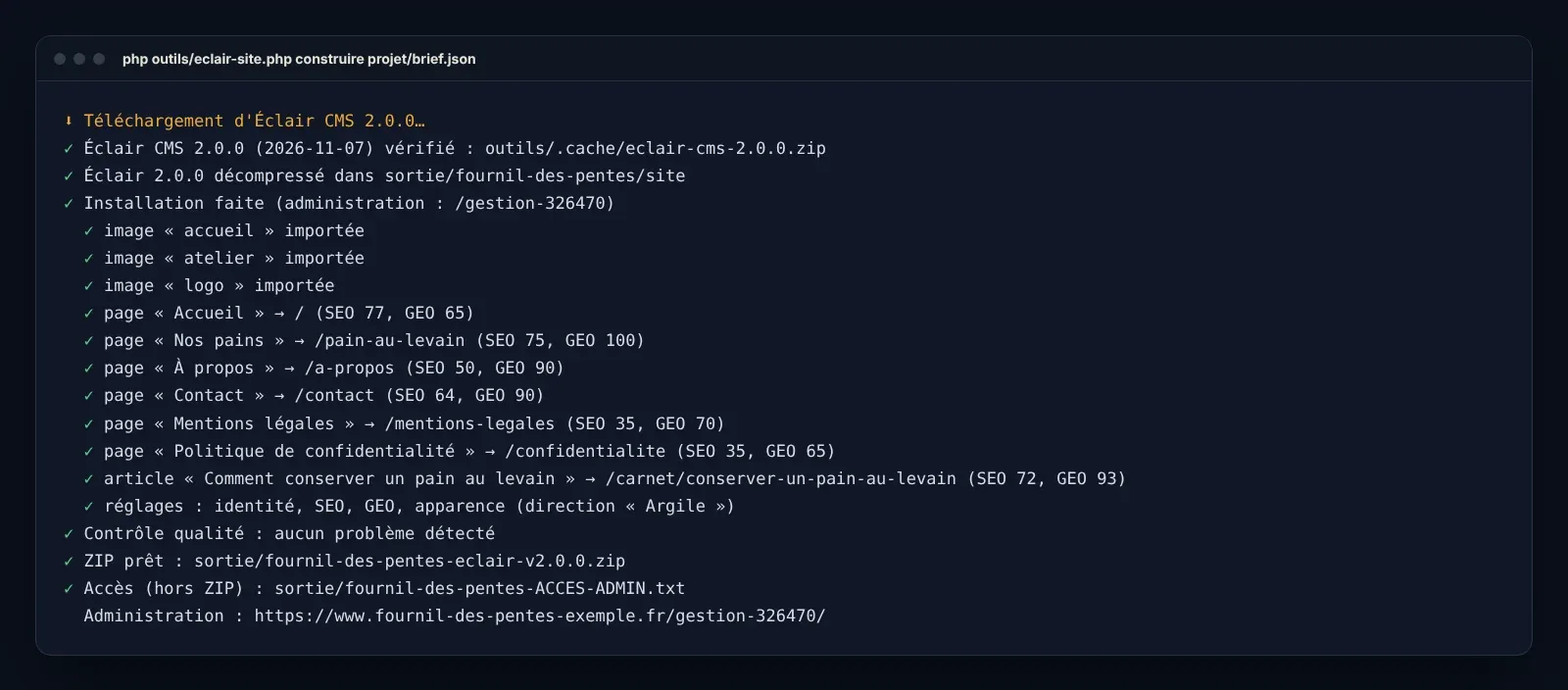
The agent writes all the copy, then runs the engine: verified download of the latest Éclair, installation, applying your brief and checking every page. For the example site, the build took 6 seconds.
Then the agent reads the SEO and GEO analysis and improves the copy up to the targets, in two passes at most. If information is missing, delivery is blocked and it asks you: no “[À compléter]” ever goes online.
Step 6: collect your site and put it online
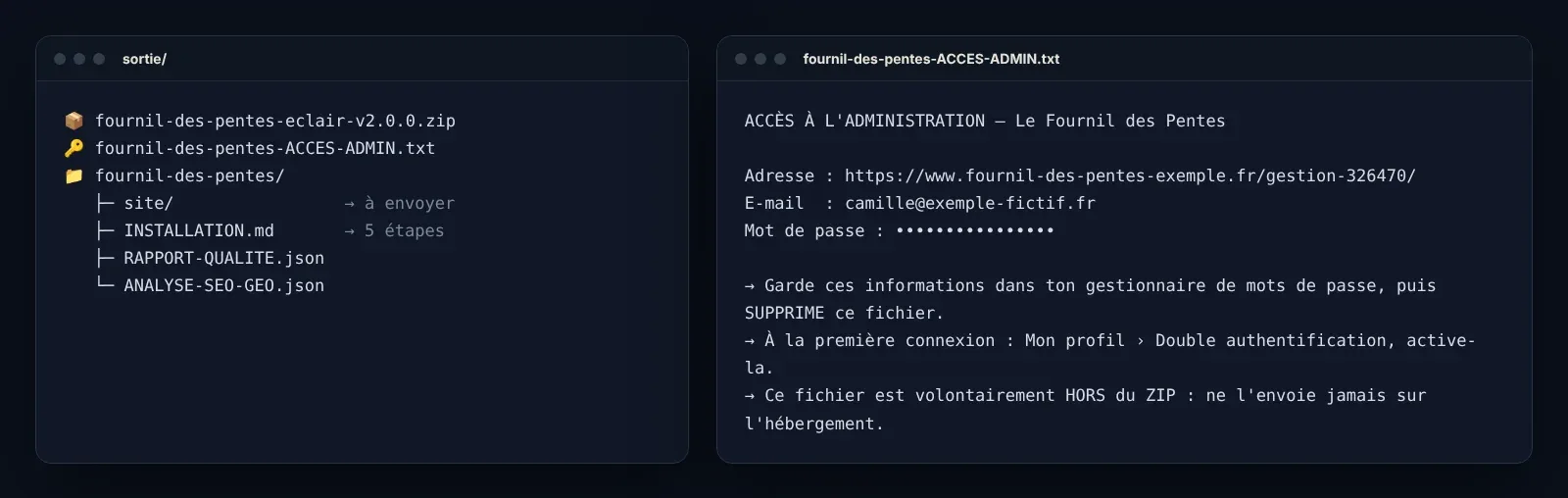
In the sortie/ folder, you find the site ZIP and, next to it, the admin access file. The INSTALLATION.md guide explains going live: prepare the hosting, upload the content of the site folder (including the hidden .htaccess file), open the site, then turn on two-factor authentication.
The result: a ready site, and an admin of your own
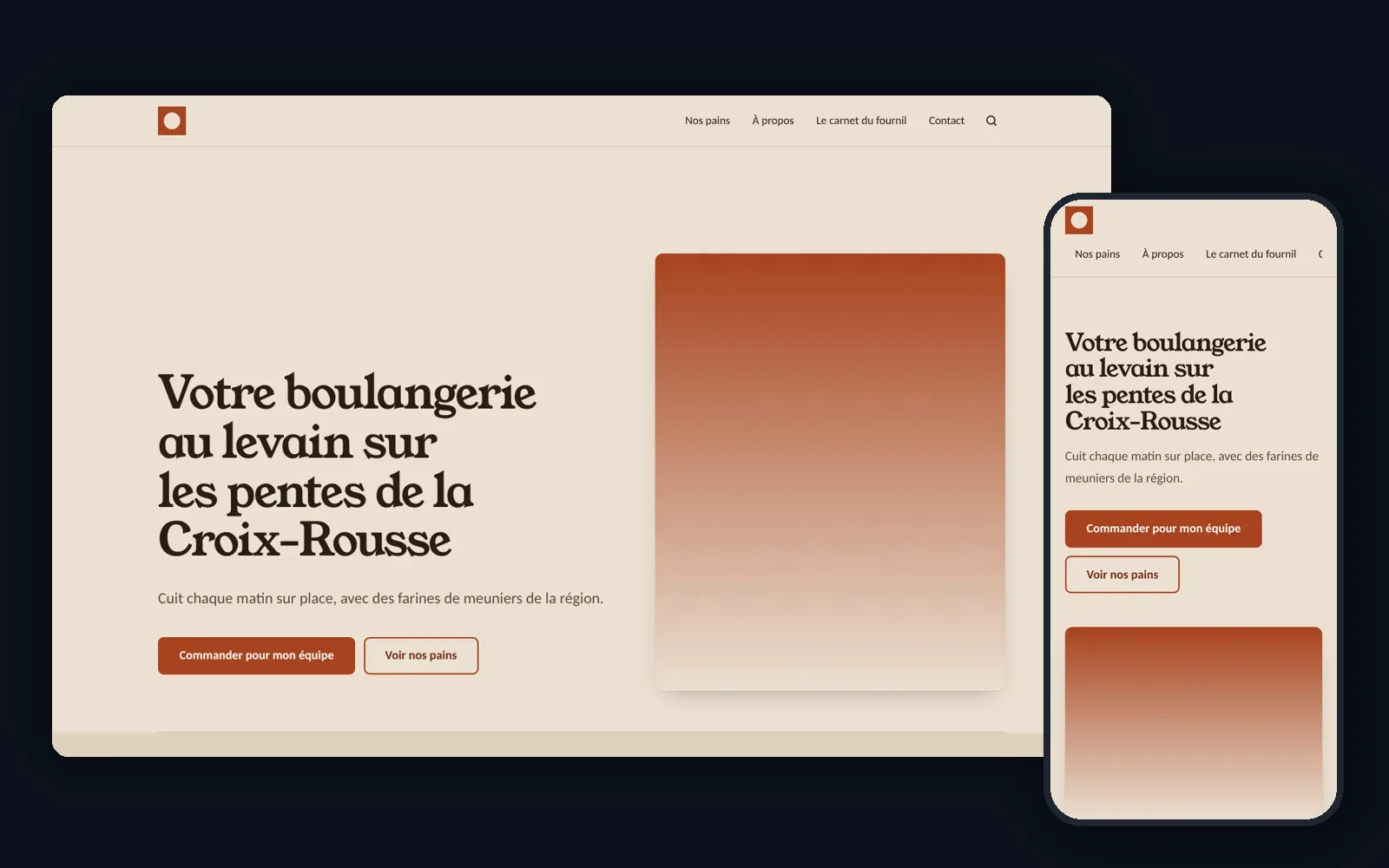
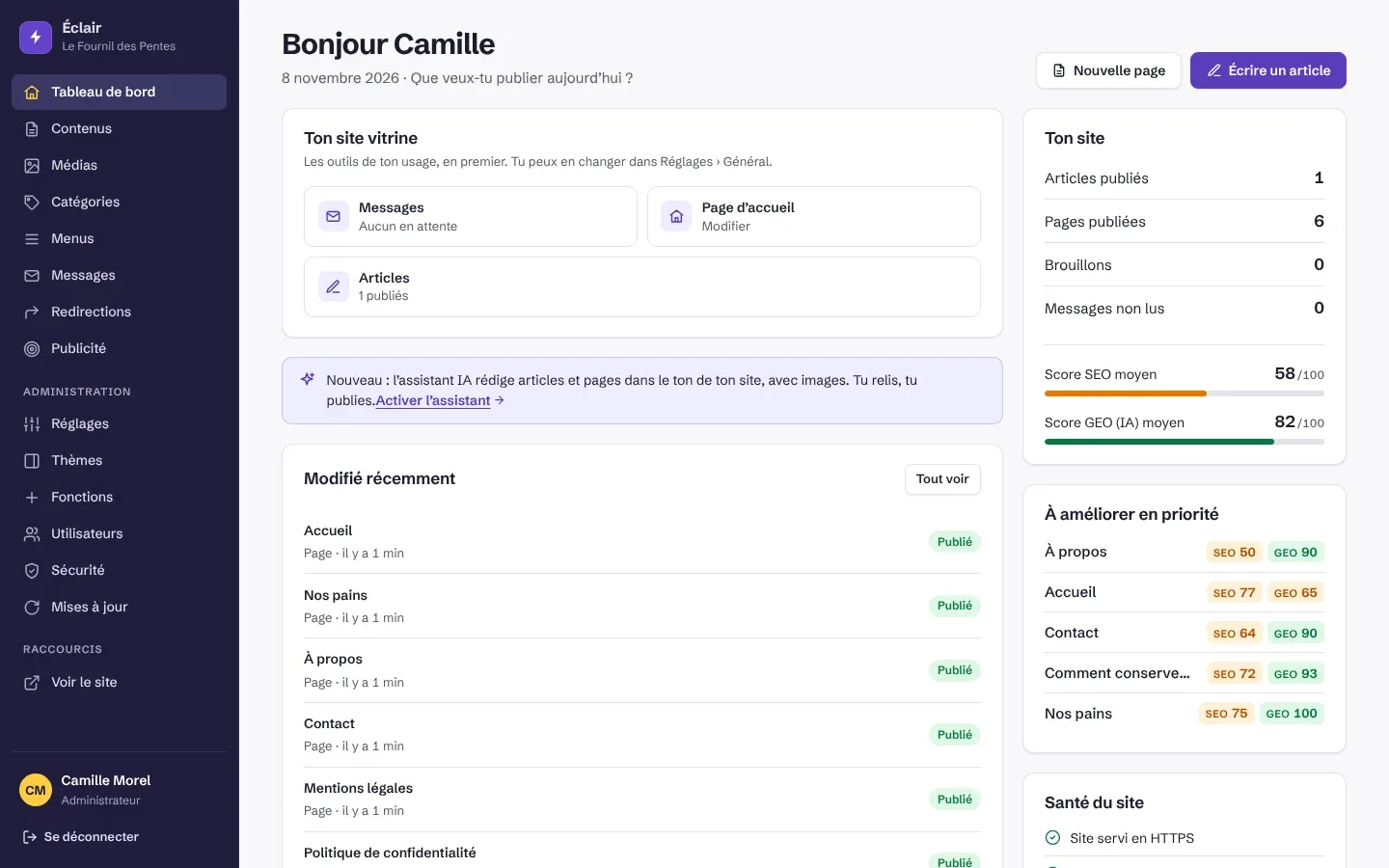
The example site comes out with its pages, its blog post, its legal pages, its art direction and its admin. You then run it yourself: pages, posts, SEO. And you can ask the agent again to add a page or change the colours: it rebuilds.
How do you get the best result?
- Give precise facts in the business sheet: prices, lead times, area, what sets you apart. The more precise, the better the copy.
- Prefer your real photos for the team, the place and the products; keep AI for atmospheres.
- Prepare your legal information: company number, address, host, consumer mediator if you sell to individuals.
- Choose your host before building: its details go into the legal pages.
- Review the site before uploading it: the agent proposes, you publish.
Download the Éclair CMS AI Agent
The agent is free. Version 1.0.0, 99 KB, tested with Éclair 2.0.0. SHA-256 checksum: 864cf1d124a8e9a7278349ea3a32ae00108abdc322f85b3d08e045628a1136df.
Frequently asked questions about creating a site with the agent
How much does creating a site with the agent cost?
The agent and Éclair are free. What remains is your Claude or Codex subscription, your hosting, your domain name and, if you choose them, a few euros of AI images.
Can I create several sites?
Yes. For each new site, the agent stores the previous project in projet/archives/ before starting from scratch.
What if I don’t have a host yet?
The agent explains what to check (PHP 8.3, free SSL certificate) and names common hosts in your country, without promising prices.
Can I add a shop or a member area?
Éclair’s lightweight shop is supported. To go further, the agent relies on the official Éclair skills.
Read next
Migrate from WordPress to Éclair CMS without losing a URL
Migrate from WordPress to Éclair CMS with Eclair Export: content, images, SEO, menus and redirects carried over, a dry run, then a report for your client.
Éclair 2.3 and Eclair Export 1.1: migrating from WordPress made easy
Éclair 2.3 and Eclair Export 1.1 move a WordPress site in a single transfer: one key, one click, no download and no FTP. Diagrams and a step-by-step guide.
The Éclair 2.0 core and its 57 skills: features on demand
Why Éclair 2.0 keeps a lightweight core and hands the rest to 57 skills: benefits, foundations, what already works, limits and how to write your own skills.