Éclair 1.10: one-click updates and Google Drive backups
 By Thierry Gustin
Published
Updated
8 min read
Contents
- What’s new in Éclair 1.10?
- How does a one-click update work?
- Why is it safe?
- How do you back up your site to Google Drive?
- What does a backup contain?
- What does Éclair see in your Drive?
- How do you back up on schedule, even with no visits?
- How do you restore a backup?
- How do you upgrade from Éclair 1.9 to 1.10?
- Good to know
- What comes next?
- Frequently asked questions about Éclair 1.10
With Éclair 1.10, available since November 2, 2026, you install future versions in one click, without FTP, and Éclair checks everything before touching your site. Your site can also back itself up automatically to your Google Drive, every day or every week.
What’s new in Éclair 1.10?
| New feature | What it gives you |
|---|---|
| One-click update | Éclair tells you about a new version, and you install it in one click, whenever you choose |
| Signature and checks | Every version is signed by the maintainer, and every file is checked before the slightest change |
| Automatic rollback | If your site stops responding as before, Éclair goes back to the old version on its own |
| Google Drive backups | A copy of your site every day or every week, with the latest 8 kept by default |
| Backups on a fixed schedule | A secret URL, called every hour, starts backups even without a visit |
| Under the hood | 528 KB archive (about 1 MB unzipped), 609 automated checks, including 31 for updates and 21 for Google Drive |
What your visitors see doesn’t change: 1.10 touches neither the theme nor the display, and Lighthouse stays at 100. The 140 new interface strings are translated into the admin’s 7 languages. And a safeguard stops a host that disables set_time_limit from interrupting the installation, the AI or image uploads under PHP 8.
New to Éclair? Version 1.9, released the same day, brought art direction V2: read the post about Éclair 1.9.
How does a one-click update work?
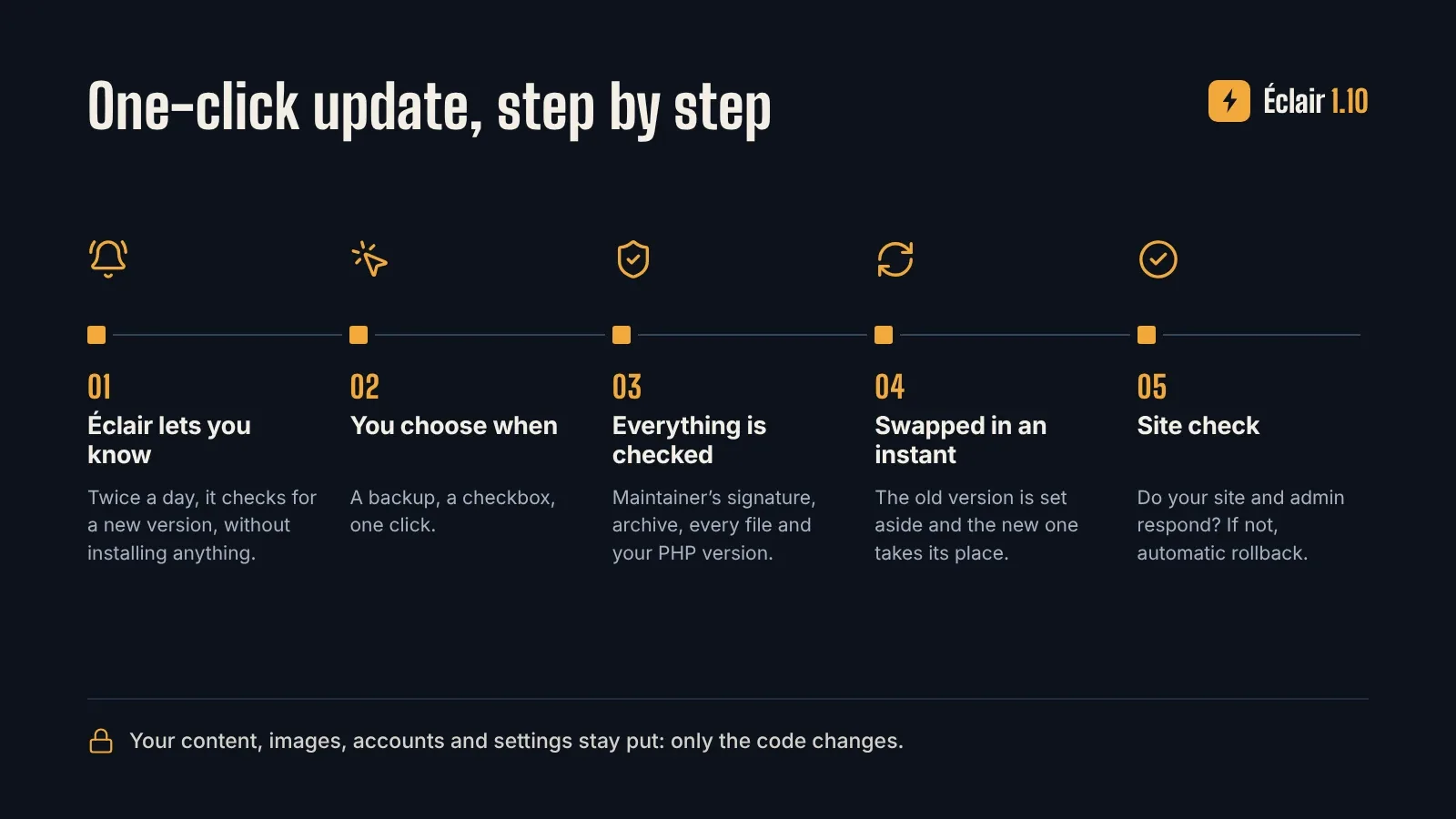
Éclair watches for new versions for you. Twice a day, it checks GitHub for a more recent version, without installing anything. When there is one, a banner appears on your dashboard, and a badge shows on Updates, in the menu. Only administrators see them.
Then you choose the moment. Three steps are all it takes:
- Open Updates in the admin menu. You’ll see the available version and a link to what’s new in it.
- Make a backup. Click Download a backup, on the same page, or start a Google Drive backup if you’ve connected it.
- Check “I have a recent backup of my site”. Confirm your password if asked. Finally, click Update to ….
Allow about ten seconds, and don’t close the page in the meantime. Behind the scenes, Éclair works in four stages:
- It downloads the new version from GitHub and verifies the signature of its announcement.
- It verifies the archive’s fingerprint, every file, and that your PHP version can read every PHP file. All of this happens before it touches anything.
- It swaps the versions: the old one is set aside, in
cache/update/previous, and the new one is installed in an instant. - It checks that your site, your admin and the new version respond as before. If not, it goes back to the old version on its own.
Not happy with a detail afterwards? On the same page, Roll back to the previous version restores the old version in one click, and your content doesn’t change.
Why is it safe?
Updates are often nerve-racking: what if the site stopped loading? Éclair 1.10 answers with five precautions.
- A signature: every version is signed with the maintainer’s private key (Ed25519), which is never on GitHub. So a hacked repository isn’t enough to push code to your site.
- Checks before anything changes: if the archive, a file or your PHP version causes a problem, Éclair stops before touching anything.
- An automatic rollback: if your site or your admin stops responding as before, Éclair puts the old version back, without you having to step in.
- Content left intact: only
app/,assets/,index.phpand.htaccesschange. Your content, images, accounts, settings and custom CSS, stored indata/andmedia/, stay put. - A
.htaccessthat’s kept: if you or your host modified it, Éclair keeps it. It saves the new template incache/update/htaccess-<version>.txt, so you can compare them.
A recent backup is still your best insurance: that’s why the checkbox reminds you of it. The full list of protections is in Éclair’s security.
How do you back up your site to Google Drive?
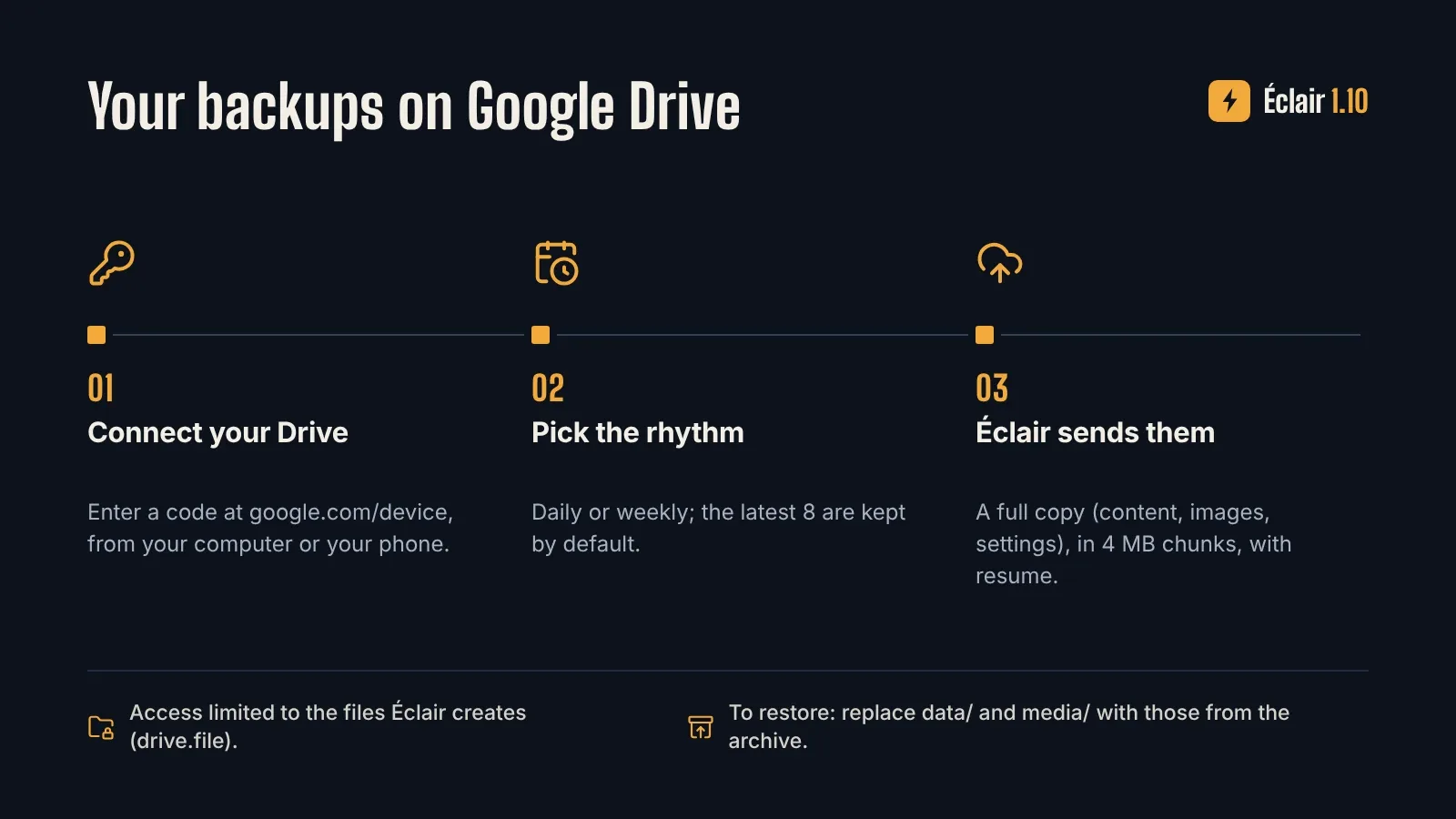
Everything happens in Security › Google Drive backups. You have nothing to copy into Éclair, no Google password and no key: a code is enough.
- Click Connect Google Drive. Éclair may ask for your password again.
- Éclair shows a code. Open google.com/device on your computer or phone. Enter the code. Choose your Google account. Then authorize Éclair.
- Go back to the page: it refreshes by itself. Under Automatic backups, keep “Weekly”, selected by default, or choose “Daily”. Under Keep the most recent, enter how many backups to keep: 8 by default. Click Save.
Backups go into a folder named “Éclair – site name” in your Drive. Beyond the number you chose, the oldest ones go to your Drive’s trash. To stop automatic uploads, choose “Off”.
Before a big change, click Back up now: the upload starts right away. A large site is sent in 4 MB chunks. If the upload is interrupted, it resumes where it left off: just keep the page open.
What does a backup contain?
It’s the same ZIP archive as the one from the Download a backup button:
| Folder | What it contains |
|---|---|
data/ | Your content, your settings, the accounts and the messages |
media/ | Your images, stored as they are, without recompression |
For security, your API keys and your Google Drive connection are never included. After a restore, you enter your keys again and reconnect your Drive.
What does Éclair see in your Drive?
Nothing but its own files. Éclair only has access to the files it creates: that’s Google’s “drive.file” permission. Its access token is encrypted on your server. Disconnect Google Drive revokes it, and you can also remove access from your Google account, at myaccount.google.com/connections. Backups already sent stay in your Drive.
How do you back up on schedule, even with no visits?
By default, an automatic backup runs when an administrator opens the admin. If nobody comes by all week, it waits for the next visit. To have it run even without a visit, leave the wake-up call to your host:
- In Security › Google Drive backups, open Backups on a fixed schedule (optional).
- Copy the scheduled task URL.
- Paste it into your host’s scheduled task (cron), or into the free cron-job.org service.
- Set it to run every hour.
One call per hour doesn’t create one backup per hour: the URL only starts a backup when one is due, at the frequency you chose. Keep it to yourself, like a password.
How do you restore a backup?
Need to go back to the state of a backup? Restoring is done via FTP:
- Get the archive. In your Drive, it’s waiting in the “Éclair – site name” folder.
- Unzip it on your computer.
- Via FTP, replace your site’s
data/andmedia/folders with the ones from the archive. - Log in to the admin. Then clear the cache in Settings › Advanced › Clear cache.
- Enter your API keys again, if you use the AI assistant. Finally, reconnect Google Drive.
How do you upgrade from Éclair 1.9 to 1.10?
One-click updates arrive with 1.10: so to install it, you need to go through FTP, one last time.
- In Security › Backup, click Download a backup.
- Via FTP, delete the
app/andassets/folders. Then upload the ones from 1.10, along withindex.phpand.htaccess. - Don’t touch
data/ormedia/: your content and images stay there. - Open your site. The cache clears itself on the first visit, because it’s now tied to the version.
This is the last time. For the following versions, the banner on your dashboard will let you know, and the Update to … button will do the rest. The 594 KB archive is waiting for you on the Download page, and the Updating, backing up, moving guide details each step.
Good to know
- Three PHP extensions: one-click updates require sodium, zip and curl, along with folders that PHP can write to. If something is missing, the Updates page explains what to fix, and you can still update via FTP. Google Drive backups use the same extensions.
- A theme edited by hand: Éclair files edited by hand, such as the theme’s, are replaced by their new version. The Updates page lists them before installing. For a lasting tweak, use Custom CSS (Settings › Appearance): it’s stored in
data/, so it stays put. - A strict host: if it prevents your server from calling itself, Éclair installs the update without being able to check it, and tells you so. Then open your site to check it, and roll back if needed.
- A check you can turn off: would you rather keep an eye on things yourself? Turn off the automatic check in Settings › Advanced. The Check now button stays available.
What comes next?
With Éclair 1.10, your next update will be the first one in one click: the banner on your dashboard will let you know. Until then, your feedback decides what comes next, as with every version. A host where one-click updates get stuck, an idea for backups? Let me know through the contact page or open an issue on GitHub.
Frequently asked questions about Éclair 1.10
Does Éclair install updates on its own?
No. It checks twice a day for a new version and lets you know, but nothing is installed without your approval. You choose the moment, then one click is enough. The automatic parts are the checks and the rollback if something goes wrong.
What happens if an update goes wrong?
If a check fails before installation, your site doesn’t change. If your site stops responding as before after installation, Éclair goes back to the old version on its own. In the rare case where the admin no longer loads, troubleshooting explains how to put the old version back via FTP.
Can Éclair see my whole Google Drive?
No. It only has access to the files it creates itself (“drive.file” permission), stored in a folder named “Éclair – site name”. It sees nothing else in your Drive, and you can remove its access at any time.
How much do the new features in Éclair 1.10 cost?
Nothing: Éclair is still free (under the AGPL-3.0 free software license since 1.10.1), and neither one-click updates nor backups use AI. Backups only take up space in your Drive: set the number to keep according to your free space.
Can I go straight from 1.7 to 1.10?
Yes: the FTP procedure is the same whatever version you have, and 1.10 includes the new features of the previous versions. Check the PHP zlib extension, required since 1.8, and make a backup first.
Read next
Migrate from WordPress to Éclair CMS without losing a URL
Migrate from WordPress to Éclair CMS with Eclair Export: content, images, SEO, menus and redirects carried over, a dry run, then a report for your client.
Éclair 2.3 and Eclair Export 1.1: migrating from WordPress made easy
Éclair 2.3 and Eclair Export 1.1 move a WordPress site in a single transfer: one key, one click, no download and no FTP. Diagrams and a step-by-step guide.
Create a website from A to Z with the Éclair CMS AI Agent
The complete guide to building a pro website with the Éclair CMS AI Agent: each step, the frictions removed, the screenshots and the download link.